




ASUS Transformer Book T100 Now Shipping with HDD Keyboard Dock
| ASUS today announced that the Transformer |


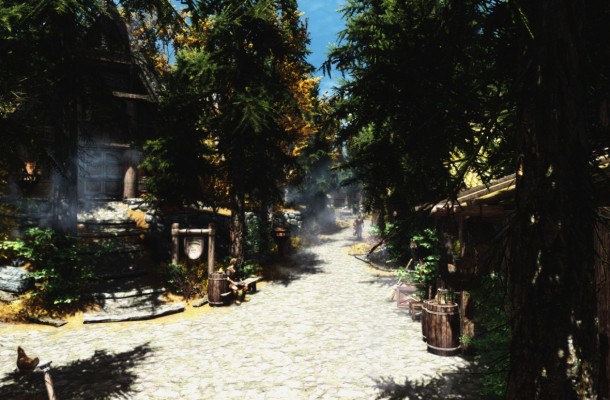
Since you guys have requested it, we decided to write up a tutorial on how to mod your Skyrim to your uttermost desires. We will go over the basics and will go step by step on how to mod your Skyrim as well as some tips and tricks to help you along the way.
What is modding?
If you are new to modding games or don’t understand what modding is yet I’d direct you to this link for a easy to understand generalization of modding. If you know what modding is then you can skip this link.
Modding: – http://en.wikipedia.org/wiki/Modding
In our case, we are adding new user created content into Skyrim that is playable, usable, or tweaks the base game to something different. It may be content, graphical differences, or expanding on the gameplay.
How does modding in Skyrim work?
Skyrim has for the most part two ways of getting mods: downloading them from ‘Skyrim Nexus’ or ‘Steam Workshop’. Your game, as far as I know must be registered to Steam in order to play so you should have access to the Workshop. This is what I recommend to many people who are new to modding and also veterans.
Skyrim Nexus: – http://skyrim.nexusmods.com/
Skyrim Nexus VS Steam Workshop:
The above title is slightly misleading, this is not a match to see who is better but each method requires a different level of skill. Steam Workshop is a very easy to use, ergonomically designed application that requires you to subscribe to the mods of your choice and that’s it. It downloads the mods for you and makes them work, simple and quick. On the Skyrim Nexus, you download the files and must follow the instructions supplied with the download or on the mod page in order to make the mod work. It doesn’t sound much harder and it isn’t, but many people forget to read the instructions or miss a step and then the mod doesn’t show up correctly. However if you dislike Steam, you may want to stick to Skyrim Nexus for your download.
Compatibility and performance:
What I will get out of the way first is performance issues. If you download a graphical mod, and your PC already can’t run the game at say Ultra or High settings, then you are not going to able to run graphical mods with playable frame rates (unless a mod says it doesn’t decrease performance). However, if you can play the game at Ultra at 60fps smoothly then you have some room to work with but again cramming 50 graphical mods onto your game will slow it down regardless. A lot of large texture mods such as 2k Skyrim textures, ENB mods, and many other mods recommend you to have more than 1GB of V-RAM and at least 4GB of RAM minimum. That’s usually higher than your average gaming system so it’s not always an option for some gamers; however most of Skyrim’s best mods are non-graphical mods so this is not much of a loss.
So know your PC, understand what it can handle and don’t try to force too much down the neck. Read every detail about the mod you are downloading for compatibility notes, performance factors, and if it has any direct know conflicts with other mods or hardware. This is a very important thing you MUST DO.
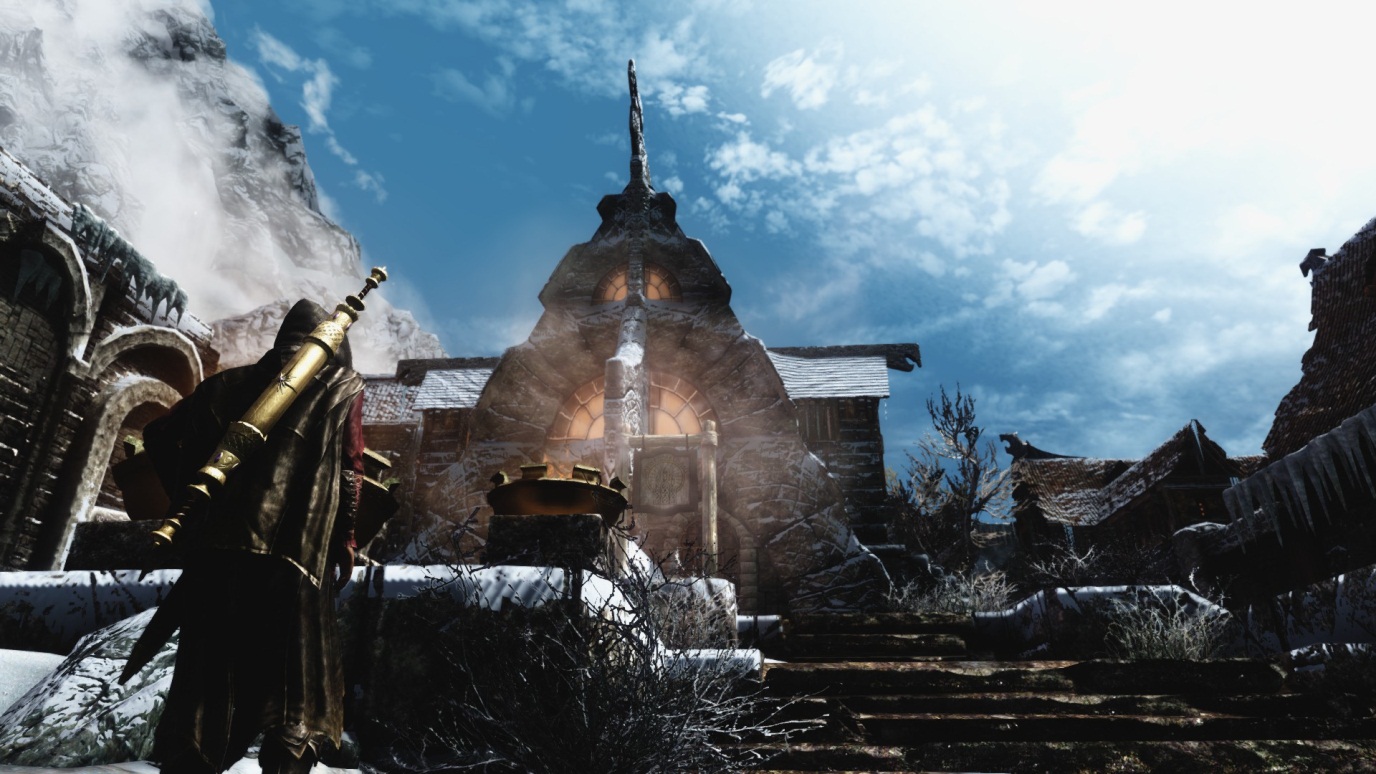
Now looking at compatibility, lets presume you have a mighty liquid cooled dual Xeon CPU and SLI Nvidia GTX690 system, performance won’t be an issues but you’re not free as of yet. Compatibility between mods is something everyone runs into, any combinations of mods can cause conflicts in many different ways and they can arise at any given time. Let me tell you my experience with some of these conflicts. I was running various mods in conjunction that you can see above in the screenshots. It was working perfectly fine together, more than playable to boot as well. However when I went back into the Workshop and downloaded 3 mods called the “Unofficial Skyrim Fix”, random graphical glitches started appearing to the point when it was unplayable. Shown below is an example of the type of issue I had.
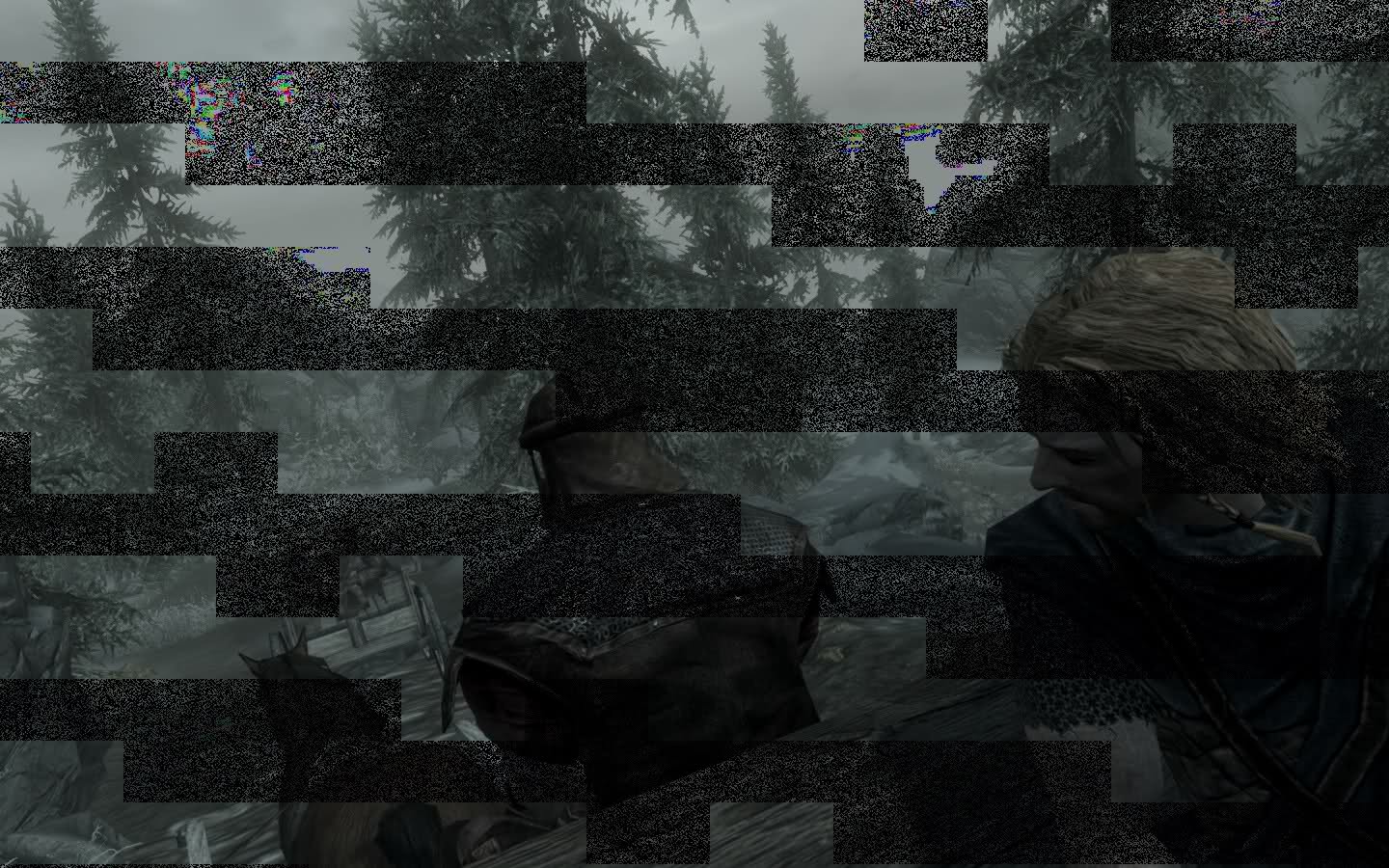
I had several ways to fix this problem but it was getting the right one that is the tricky part. We can either:
1) Change the load order
2) Remove the newest added mods to check compatibility
3) Make sure my drivers were up to date (I do this every day so I knew it wasn’t this)
Normally I try the first method if it’s a Steam Workshop item as they can be disabled with ease and re-enabled at any time. I disabled all the newly installed mods and presto the game worked with no problems. Now a second batch of testing, this can be a long process and slightly boring for those who just want to get playing but it’s generally something that comes with using mods in some cases.
We now must enable the mods 1 by 1 to see what mods cause the conflict or what combination of mods is causing the conflict. Start with the load order first as this is the fastest and easiest. Make sure the mods you want to load first are at the top, followed by game tweak mods such as Unofficial Skyrim fix, then gameplay mods. This is the basic order as it loads textures first, then fixes issues, and then adds gameplay mechanics. Doing it this way avoids any incompatibility issues between the mods. Remember to organize them though, if you have a lighting mod make sure that goes above any other lighting mod as then it will take full priority over that mod. However I don’t recommend having more than 1 type of graphical mod such as water and other texture mods. I had the mistake of adding around 2 to 3 water mods together giving me awkward changes of water in areas making the game look ugly as well as graphical issues.
So after doing all of that, if nothing seems to fix your issues or you can’t find the source of the problem its best to just delete the Skyrim mod’s you have downloaded recently and make do with the mods that you have working. Disabling a few mods can fix some problems but everyone’s computer is different and reacts differently to issues with mods.
If you were wondering it was the mod “Random Alternate Start” that was causing issues with pre-existing saves. Thus I removed the mod when I’m playing with old characters and like magic no more performance issues.
- General incompatibility
This is pretty much what I mentioned above, having un-godly numbers of graphical mods will slow your system down and possibly cause issues. And at the same time having 20 or so of the same types of mods will also cause you issues and problems such as conflicting textures and features not working on mods because other mods are adding similar features.
- Load order compatibility
Again like I’ve already mentioned it’s really important that you keep your load order clean and understandable. This is the order I generally follow.
- Graphical mods
- Gameplay Fixes (Bugs, etc.)
- Gameplay Mods
These keeps conflict to a minimum and remember to order them in those groups correctly as well, so the texture mod you want to have priority make sure that’s at the top of the graphical mod section and vice versa.
Hopefully this little guide will help you on issues you may encounter, other rules that apply to gaming in general is:
- Always update your graphical drivers
- Make sure you system can handle that you’re throwing at it
- Intel GPU users, expect some graphical issues 60% of the time
- Don’t overload Skyrim with too many mods. I will add however I’ve had 100 mods on Skyrim at once and I had no issues with it other than it was very demanding on my system.
When you get it all working together, with a good enough system you could easily get some great Skyrim moments going.
http://www.youtube.com/watch?v=rbByL1EUO4c
Or you could even make your own little story in the Skyrim lore like I did with this video!
http://www.youtube.com/watch?v=CGttRgn_deA
But whatever you choose to do with Skyrim, I hope you have a blast doing it.






| ASUS today announced that the Transformer |


Swiftech Announces New FlagShip Apogee XL CPU Waterblock. Long Beach, April 19,...


The GeForce GTX 760 Gets Unleashed Another week means yet another launch...

 ssj12 says:
 Alex Ivanov says:
 Jhonson says:
 Ingo Anghel says:
You must be logged in to post a comment Login